


Buttons, Links & Context Menus
On this page
In this lesson, you will learn:
- All the places a UI action can appear
- Which checkbox puts it where
- How to pick the right place for your action
1 Same action, many places
A UI action can show up as a button, a link, or a menu item, on forms or on lists. You choose with checkboxes on the UI action form. One action can appear in several places at once. 📍
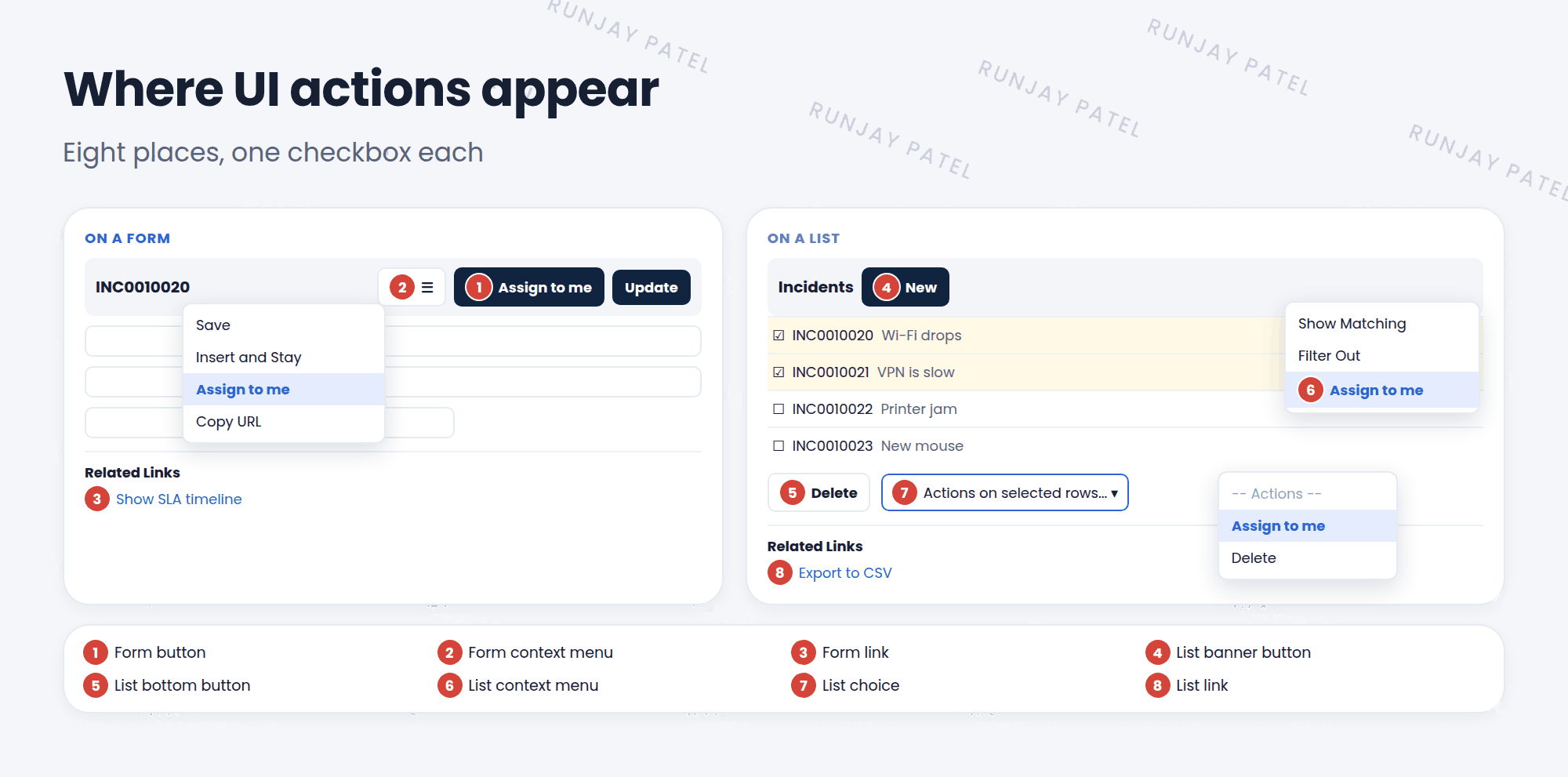
2 Form placements
| Checkbox | Appears as | Good for |
|---|---|---|
| Form button | A button in the form header (and bottom) | Main actions, like Resolve |
| Form context menu | An item when you right-click the header | Less common actions |
| Form link | A link under Related Links | Extra tools, like “Show SLA timeline” |
3 List placements
| Checkbox | Appears as | Good for |
|---|---|---|
| List banner button | A button at the top of the list | Actions for the whole list, like New |
| List bottom button | A button at the bottom of the list | Actions on checked rows |
| List context menu | An item when you right-click a row | Actions on one row |
| List choice | An item in Actions on selected rows… | Actions on many checked rows, like Assign to me |
| List link | A link under Related Links on the list | List tools |
💡 Good to know: Don’t crowd the form header. Too many buttons confuse people. Put the everyday action as a button, and the rest in the context menu or as related links.
📝 Note: In workspaces (Next Experience), UI actions show up differently. Workspaces have their own settings for which actions appear, in the Workspace tab of the UI action.
⭐ Remember: Form: button, context menu, link. List: banner button, bottom button, context menu, choice, link.
4 Let’s try it: add Assign to me to lists
- Open your Assign to me UI action from Lesson 38.1.
- Also check List choice and Form context menu. Update.
- Open the incident list. Check two rows. Open Actions on selected rows…. Is Assign to me there?
- Open an incident and right-click the header. Do you see it in the menu too?
5 Quick recap
- UI actions can be buttons, links, or menu items
- Three form placements and five list placements
- One action can appear in several places
- Keep the form header tidy
6 Check yourself
Think of your answer first. Then tap to check.
1 Which checkbox puts an action under Related Links on a form? Show answer
Form link.
2 Which checkbox adds it to “Actions on selected rows”? Show answer
List choice.
3 Where does a Form context menu action appear? Show answer
When you right-click the form header.
Nice work! You finished this lesson. 🎉
Was this lesson helpful?
Please log in to share lesson feedback.
Have a question or doubt?
Ask here and get help from instructors and fellow learners.
Only logged-in learners can post.





