


Choice Lists & Dependent Fields
On this page
In this lesson, you will learn:
- How choice lists work
- The parts of a choice: label, value, and sequence
- How to make one field’s choices depend on another
1 Drop-down lists
Category, State, and Impact are all choice fields. You pick from a list instead of typing. That keeps data clean: nobody types “Netwrok” by mistake. ✅
Key term: Choice list
The set of options for a choice field. Each option is a record in the sys_choice table.
2 Parts of a choice
| Part | What it is | Example |
|---|---|---|
| Label | What people see | Network |
| Value | What’s stored and used in scripts and filters | network |
| Sequence | The order in the list | 30 |
| Dependent value | Shows this choice only when another field has this value | network |
⚠️ Heads up: Change a label any time. But avoid changing a value that’s already used. Old records, reports, and scripts still use the old value.
3 Editing choices
- Right-click the field label and choose Configure Choices.
- Move choices between Available and Selected, or type a new one in Enter new item. Click Add.
- Click Save.
📝 Note: The Choice setting in the dictionary controls the “– None –” option. Dropdown with — None — lets the field be empty. Dropdown without — None — needs a default value.
4 Dependent fields
When Category is Network, Subcategory should show only network options. That’s a dependent field.
Key term: Dependent field
A field whose choices change based on another field. Subcategory depends on Category.
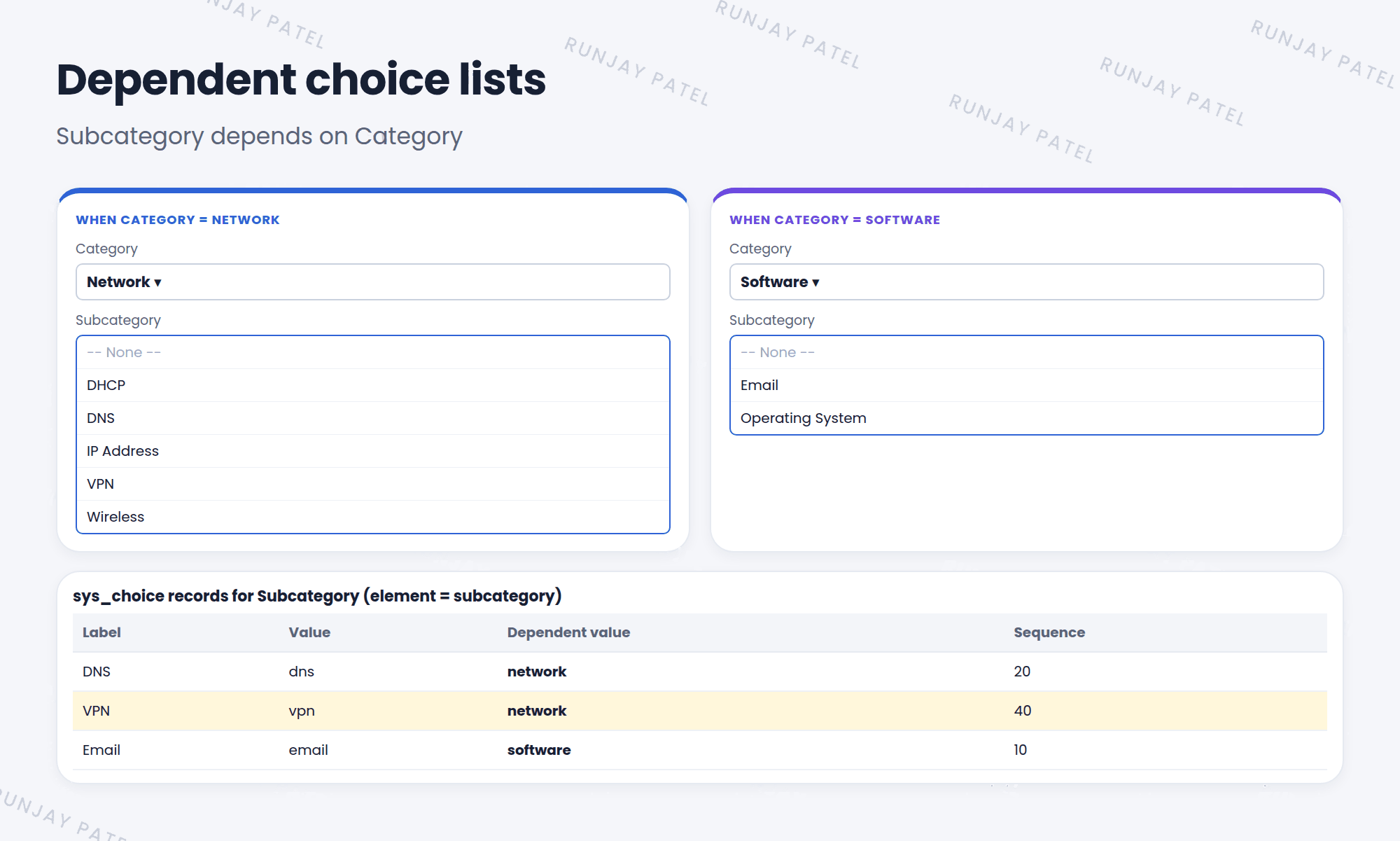
To set it up, two things are needed:
- On the child field’s dictionary entry (Subcategory), set Dependent on field to Category.
- On each child choice, set the Dependent value to the parent’s value, like
network.
⭐ Remember: Label = shown. Value = stored. Dependent value = “show me only when the parent is this.”
5 Let’s try it: fill in Meeting type
- Open a Room Booking. Right-click Meeting type (from Lesson 32.1) and choose Configure Choices.
- Add: Team meeting, Client visit, Training. Save.
- Open an incident. Set Category to Network, then open Subcategory. Now try Software. Do the options change?
6 Quick recap
- Choices are stored in
sys_choice - Each choice has a label, value, and sequence
- Edit them with Configure Choices
- A dependent field filters its choices by another field’s value
7 Check yourself
Think of your answer first. Then tap to check.
1 Which part of a choice is stored on the record: label or value? Show answer
The value.
2 Which table stores choice list options? Show answer
sys_choice.
3 A VPN choice should appear only for the Network category. What do you set on the VPN choice? Show answer
Its Dependent value, set to network (the Category value).
Nice work! You finished this lesson. 🎉
Was this lesson helpful?
Please log in to share lesson feedback.
Have a question or doubt?
Ask here and get help from instructors and fellow learners.
Only logged-in learners can post.





