


Scripts – Background
On this page
In this lesson, you will learn:
- What Scripts – Background is for
- The parts of the Scripts – Background page
- How to use it safely
1 A place to run a script now
Sometimes you want to run a quick server-side script, just once. Maybe to test some code, or to count records. Scripts – Background is the place. 🧪
Key term: Scripts – Background
A page where admins type and run server-side JavaScript right away. Find it at System Definition > Scripts – Background.
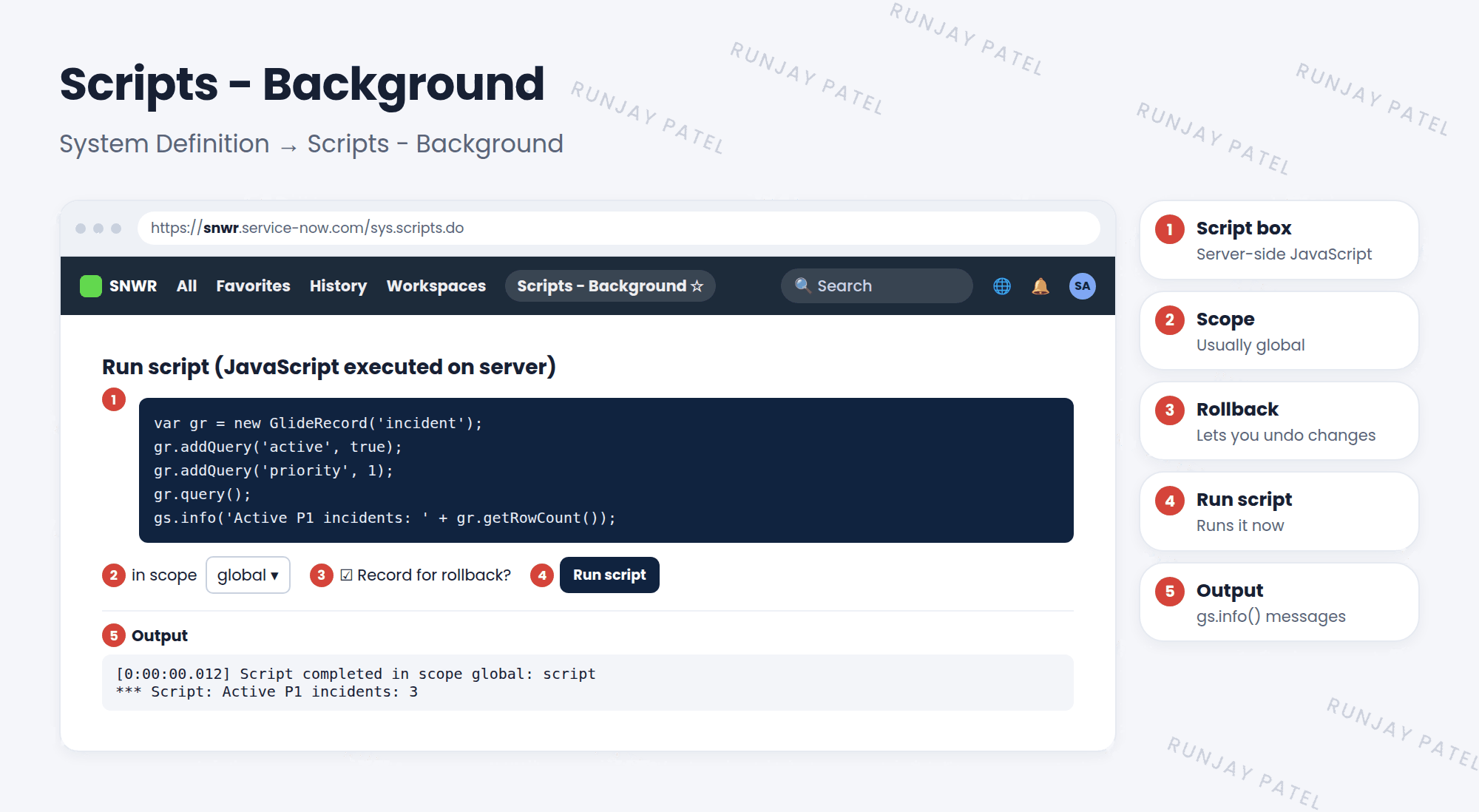
2 Parts of the page
| Part | What it does |
|---|---|
| Script box | Where you type server-side JavaScript |
| in scope | Which application scope the script runs in. Usually global |
| Record for rollback? | Saves the changes so you can undo them later |
| Run script | Runs the script right now |
| Output | Shows messages from gs.info(), starting with *** Script: |
3 A safe first script
This script only reads data. It doesn’t change anything.
var gr = new GlideRecord('incident');
gr.addQuery('active', true);
gr.addQuery('priority', 1);
gr.query();
gs.info('Active P1 incidents: ' + gr.getRowCount());
📝 Note: You need the admin role. On many instances you also need to elevate to the security_admin role first (user menu > Elevate role).
⚠️ Heads up: Scripts here run with full power, right away. One wrong line can change or delete thousands of records. Test in snwrdev, start with read-only scripts, and never experiment in production.
💡 Good to know: If you used Record for rollback, you can undo a script’s changes from the Script Execution History (the link appears after the run).
⭐ Remember: Scripts – Background = run server-side code now. Powerful, so test in dev first.
4 Let’s try it: count some records
- If needed, elevate to security_admin from your user menu.
- Open System Definition > Scripts – Background.
- Paste the script above. Keep scope global. Click Run script.
- Change
priorityto2and run it again. How many P2s are there?
5 Quick recap
- Scripts – Background runs server-side scripts right away
- Pick the scope, then click Run script
- Output from
gs.info()shows as*** Script: - Record for rollback lets you undo changes
- Use it carefully, and never experiment in production
6 Check yourself
Think of your answer first. Then tap to check.
1 Does Scripts – Background run client side or server side? Show answer
Server side.
2 Which option lets you undo a script’s changes later? Show answer
Record for rollback.
3 Which role do you often need to elevate to first? Show answer
security_admin.
Nice work! You finished this lesson. 🎉
Was this lesson helpful?
Please log in to share lesson feedback.
Have a question or doubt?
Ask here and get help from instructors and fellow learners.
Only logged-in learners can post.





