


Converting UI Policies
On this page
In this lesson, you will learn:
- Why you might turn a UI policy into a data policy
- How to convert one in a few clicks
- What carries over, and what doesn’t
1 From “form rule” to “data rule”
SNWR has a UI policy that makes Resolution code mandatory when an incident is resolved. But some incidents get resolved by an integration, with no form at all. Resolution code is empty on those! 😬
The fix: convert the UI policy into a data policy, so the rule works everywhere.
2 How to convert
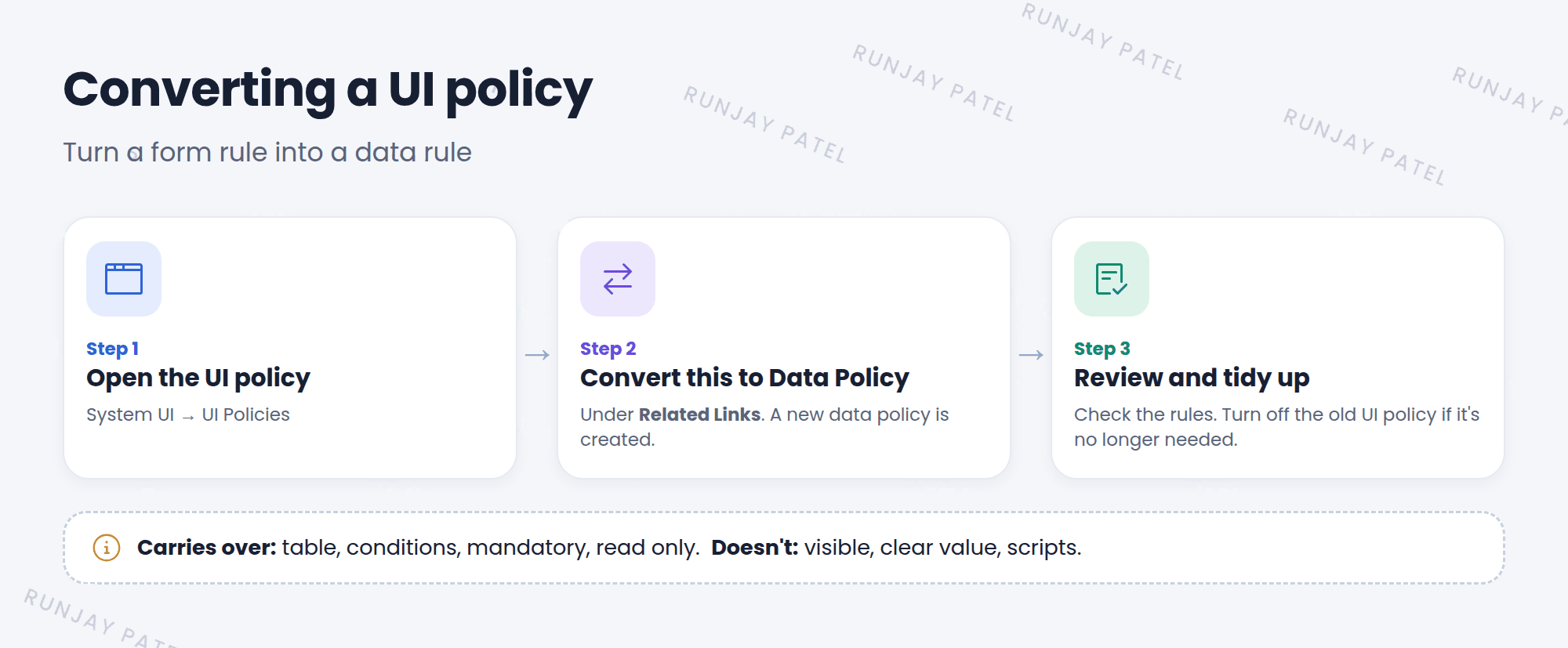
- Open the UI policy in System UI > UI Policies.
- Under Related Links, click Convert this to Data Policy.
- A new data policy opens, with the same table and conditions, and matching data policy rules.
- Review it. Check Use as UI Policy on client if you want it to work on forms too.
3 What carries over
| From the UI policy | In the data policy |
|---|---|
| Table, conditions | ✅ Copied |
| Mandatory actions | ✅ Copied |
| Read only actions | ✅ Copied |
| Visible actions | ❌ Not copied (data policies can’t hide) |
| Clear the field value | ❌ Not copied |
| Scripts | ❌ Not supported (data policies have no scripts) |
📝 Note: Only simple UI policies convert cleanly: ones that apply to all views (Global checked) and don’t run scripts. If the link is missing or fails, check those two settings.
⚠️ Heads up: After converting, you have two rules: the old UI policy and the new data policy. If the data policy uses Use as UI Policy on client, you can usually deactivate the old UI policy, unless it still has visible actions or scripts you need.
💡 Good to know: Going the other way? You don’t need to convert. Just check Use as UI Policy on client on the data policy.
⭐ Remember: UI policy > Related Links > Convert this to Data Policy. Only mandatory and read only carry over.
4 Let’s try it: convert close info
- Open your When resolved, require close info UI policy from Lesson 33.2.
- Click Convert this to Data Policy.
- Look at the new data policy’s rules. Are Resolution code and Resolution notes there? Is Assignment group read only?
- Check Use as UI Policy on client. Update.
- Deactivate the original UI policy (uncheck Active). Test by resolving an incident. Is close info still required?
5 Quick recap
- Convert a UI policy when the rule must hold for all data sources
- Use Convert this to Data Policy under Related Links
- Table, conditions, mandatory, and read only carry over
- Visible, clear value, and scripts don’t
- Avoid keeping two copies of the same rule
6 Check yourself
Think of your answer first. Then tap to check.
1 Where is the Convert this to Data Policy link? Show answer
Under Related Links on the UI policy.
2 Your UI policy hides a field. Will that carry over to the data policy? Show answer
No. Data policies can’t hide fields.
3 How do you make a data policy also work on forms? Show answer
Check Use as UI Policy on client.
Nice work! You finished this lesson. 🎉
Was this lesson helpful?
Please log in to share lesson feedback.
Have a question or doubt?
Ask here and get help from instructors and fellow learners.
Only logged-in learners can post.





