


Instance Cloning
On this page
In this lesson, you will learn:
- What instance cloning is, and why teams do it
- How exclusions and data preservers protect the target
- How to request a clone safely
1 A fresh copy of production
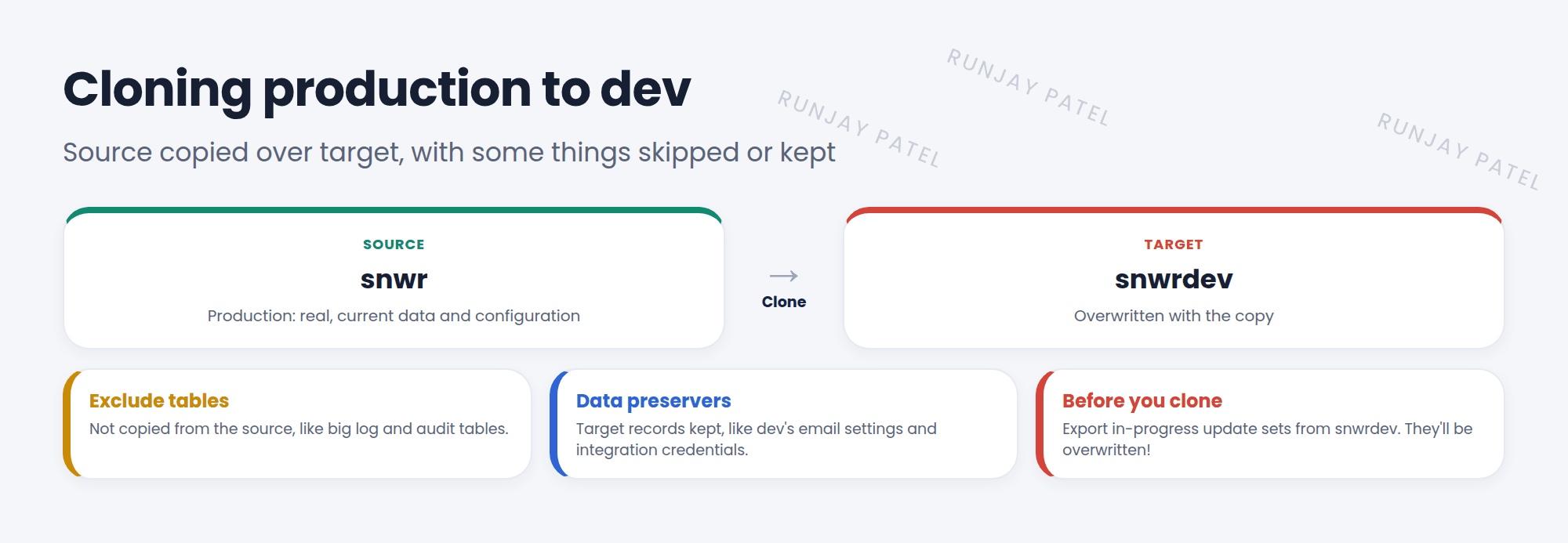
Over time, snwrdev drifts away from snwr (production). Old test data piles up, and new production settings are missing. The fix: clone production over dev, so you’re building on a real, current copy. 🧬
Key term: Instance clone
Copies the data and configuration from a source instance to a target instance. Everything on the target is replaced, except what you choose to exclude or preserve.
2 Exclusions and data preservers
| Setting | Does | Example |
|---|---|---|
| Exclude tables | Don’t copy these tables from the source | Big log tables, audit history, attachments |
| Data preservers | Keep these target records as they are | Dev’s email settings, integration credentials, the clone settings themselves |
| Clone profile | A saved set of these choices | “Prod to Dev – standard” |
⚠️ Heads up: Without the right preservers, a cloned dev instance could send real emails to users or call real integrations! Check that email is turned off or redirected on sub-production instances after every clone.
3 Requesting a clone
- Before: export any in-progress update sets from the target. The clone overwrites them.
- On the source instance, go to Clone Admin Console > Request Clone (clones can also be requested from the Now Support portal).
- Pick the target instance, the clone profile, and a date and time.
- Submit. Watch its progress in the Clone Admin Console.
- After: log in to the target, check email settings and integrations, then re-import your update sets.
📝 Note: Clones copy down: production to dev or test. You never clone over production. Large instances can take hours.
⭐ Remember: Clone = source copied over target. Exclusions skip tables. Preservers keep target data. Save update sets first!
4 Let’s try it: look at clone settings
- In your PDI, type Clone in the All menu. Open the Clone Admin Console. What can you see there?
- Find the list of excluded tables. Name three of them.
- Find the data preservers. What does ServiceNow preserve by default?
5 Quick recap
- A clone copies a source instance over a target
- Usually production → dev or test, never over production
- Exclusions skip tables. Data preservers keep target data
- Save in-progress update sets before cloning
- After cloning, check email and integrations on the target
6 Check yourself
Think of your answer first. Then tap to check.
1 You clone prod to dev. What happens to dev’s in-progress update sets? Show answer
They’re overwritten, unless you export them first.
2 Which setting keeps dev’s email settings after a clone? Show answer
A data preserver.
3 Where do you request a clone inside the instance? Show answer
Clone Admin Console > Request Clone, on the source instance.
Nice work! You finished this lesson. 🎉
Was this lesson helpful?
Please log in to share lesson feedback.
Have a question or doubt?
Ask here and get help from instructors and fellow learners.
Only logged-in learners can post.





