


Dictionary Attributes
On this page
In this lesson, you will learn:
- What dictionary attributes are
- How attributes are written
- A few attributes admins use often
1 Small switches, big changes
The main dictionary fields cover the basics: type, length, mandatory. But sometimes you want a field to behave a little differently. That’s what dictionary attributes are for. 🎛️
Key term: Dictionary attribute
A small setting on a dictionary entry that changes how a field looks or works. Written as name=value.
2 How attributes are written
Attributes are a list of name=value pairs, separated by commas. For example:
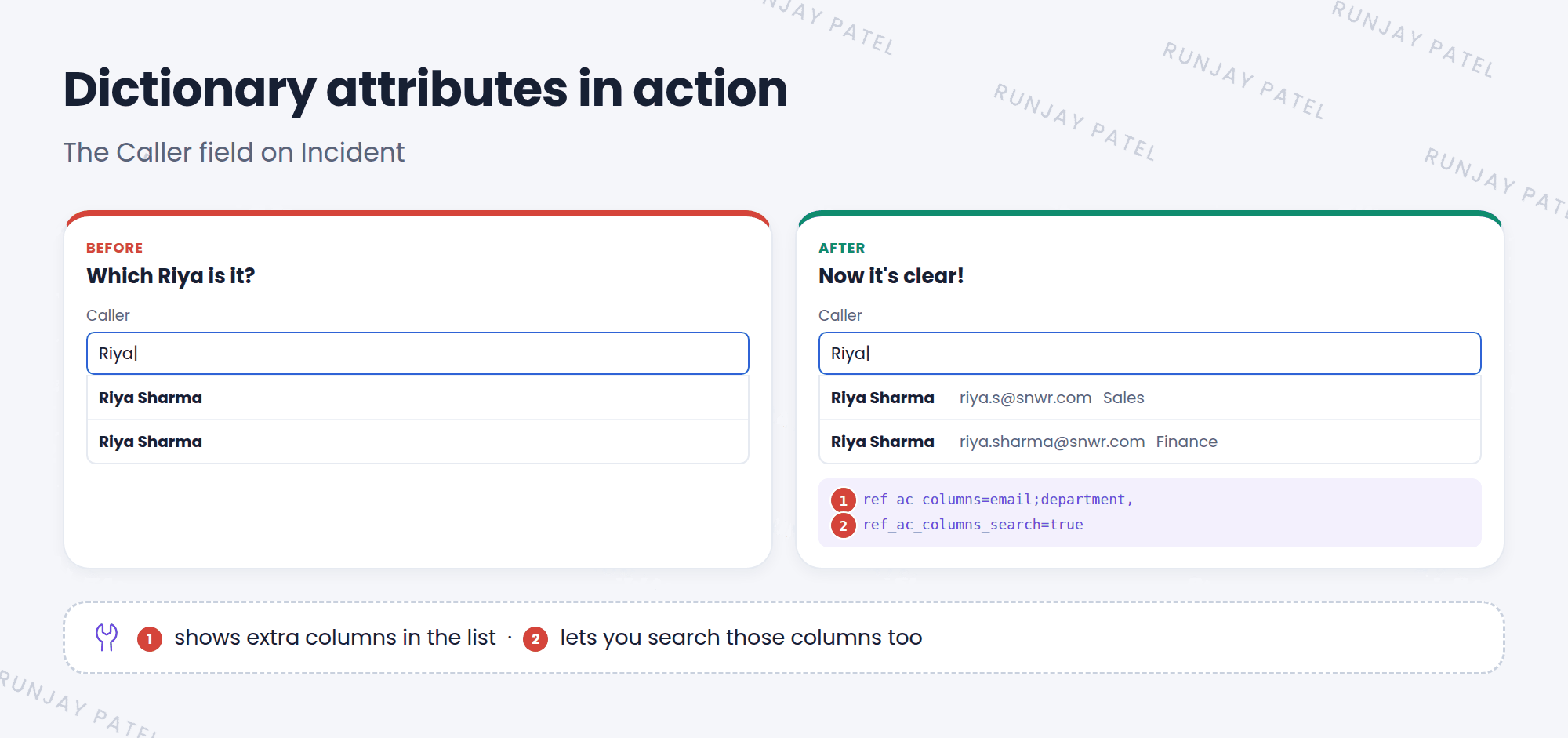
ref_ac_columns=email;department,ref_ac_columns_search=true
- The comma separates one attribute from the next.
- The semicolon separates values inside one attribute, like two column names.
- Some attributes are just switches:
no_sort=true.
📝 Note: On the dictionary entry form, attributes show in the Attributes field (switch to Advanced view if you don’t see it) and in the Attributes related list.
3 See it in action
SNWR agents often pick the wrong caller when two people have the same name. Adding an attribute to the Caller field shows more details in the search box.
4 Attributes worth knowing
| Attribute | What it does |
|---|---|
ref_ac_columns |
Shows extra columns in a reference field’s search list |
ref_ac_columns_search |
Lets you search those extra columns too |
ref_ac_order_by |
Sets the sort order of the search list |
ref_contributions |
Adds an icon next to a reference field, like one that shows the caller’s open incidents |
no_sort |
Stops users from sorting a list by this field |
tree_picker |
Shows a tree to pick from, for tables with parent and child records |
💡 Good to know: You don’t need to memorize every attribute. Look up the exact name in the ServiceNow docs, and test the change in snwrdev first.
⭐ Remember: Attributes = name=value, separated by commas. They tweak how one field looks or works.
5 Let’s try it: improve the Caller search
- Open an incident. Right-click the Caller label and choose Configure Dictionary.
- Look at the Attributes field. What’s already there? Keep it.
- At the end, add
,ref_ac_columns=email;department,ref_ac_columns_search=true. Click Update. - Open a new incident and type a name in Caller. Do you see email and department now?
6 Quick recap
- Dictionary attributes change how a field looks or works
- Written as
name=value, separated by commas ref_ac_columnsandref_ac_columns_searchimprove reference searches- Always keep existing attributes when you add a new one
7 Check yourself
Think of your answer first. Then tap to check.
1 What separates two attributes from each other? Show answer
A comma.
2 You want the Caller search to show each user’s email. Which attribute do you use? Show answer
ref_ac_columns (for example, ref_ac_columns=email).
3 You can’t see the Attributes field on the dictionary form. What should you try? Show answer
Switch to Advanced view, or use the Attributes related list.
Nice work! You finished this lesson. 🎉
Was this lesson helpful?
Please log in to share lesson feedback.
Have a question or doubt?
Ask here and get help from instructors and fellow learners.
Only logged-in learners can post.





