


UI Policy Actions
On this page
In this lesson, you will learn:
- What UI policy actions are
- The options for each action: mandatory, visible, read only, and clear
- How to show or hide related lists with a UI policy
1 The “what happens” part
A UI policy’s condition says when. Its actions say what happens to each field. One policy can have many actions. 🎬
Key term: UI policy action
One change to one field when the UI policy’s condition is true. Added in the UI Policy Actions related list.
2 Action options
| Option | Choices | What it does |
|---|---|---|
| Mandatory | True / False / Leave alone | Requires the field before saving |
| Visible | True / False / Leave alone | Shows or hides the field |
| Read only | True / False / Leave alone | Lets people see but not change the field |
| Clear the field value | Checkbox | Empties the field when the policy runs |
💡 Good to know: Leave alone is important. It means “this action doesn’t change that setting”, so other policies or the dictionary decide it.
⚠️ Heads up: A field that is mandatory and empty can’t be hidden or made read only. ServiceNow keeps it visible so the user can fill it in.
3 Showing and hiding related lists
UI policies can also control related lists. Use the UI Policy Related List Actions related list. Pick the list, then set Visible to True or False.
For example: hide the Affected CIs related list until Category is Network.
⭐ Remember: Actions: Mandatory, Visible, Read only (True / False / Leave alone), plus Clear the field value.
4 Let’s try it: require close info
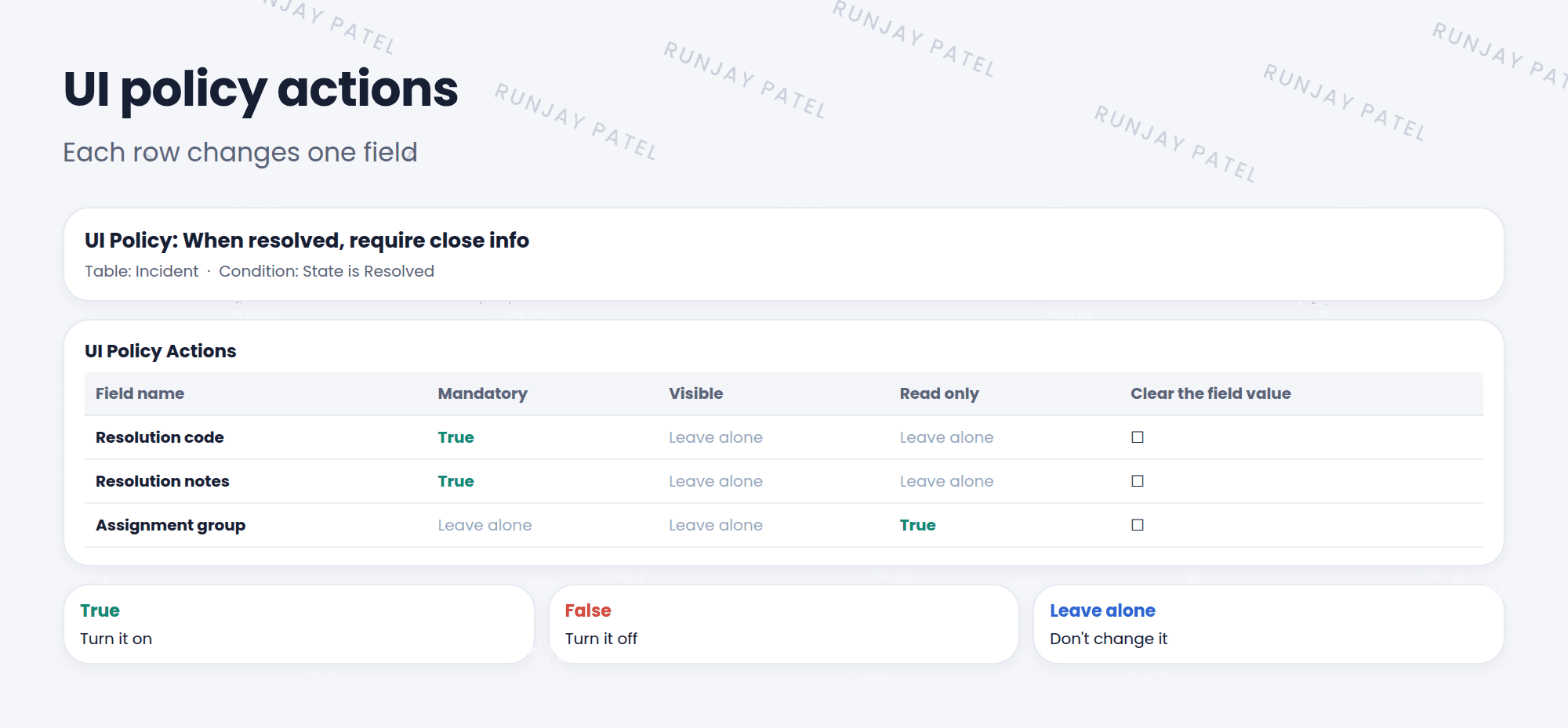
- Create a UI policy on Incident named When resolved, require close info. Condition: State is Resolved. Save.
- Add an action: Resolution code, Mandatory True.
- Add an action: Resolution notes, Mandatory True.
- Add an action: Assignment group, Read only True.
- Open an incident and set State to Resolved. What changed on the form?
📝 Note: Your instance may already have a similar policy for close info. That’s fine. Look at it and compare it to yours!
5 Quick recap
- UI policy actions say what happens to each field
- Options: Mandatory, Visible, Read only, and Clear the field value
- Leave alone means “don’t change this setting”
- Related list actions show or hide related lists
6 Check yourself
Think of your answer first. Then tap to check.
1 You want to hide a field. Which option do you set, and to what? Show answer
Visible, set to False.
2 What does “Leave alone” mean in an action? Show answer
The action doesn’t change that setting.
3 Where do you add a rule to hide a related list? Show answer
In the UI Policy Related List Actions related list.
Nice work! You finished this lesson. 🎉
Was this lesson helpful?
Please log in to share lesson feedback.
Have a question or doubt?
Ask here and get help from instructors and fellow learners.
Only logged-in learners can post.





