


Backing Out & Merging
On this page
In this lesson, you will learn:
- How to back out a committed update set
- What merging update sets does
- Why batching is often better than merging
1 Backing out: the undo button
You committed an update set to snwrtest, and something broke. 😬 You can back it out: undo the changes it made on that instance.
Key term: Back out
Reverses a committed update set on the instance where it was committed. Changed items go back to their earlier version, and new items it added are removed.
- On the target instance, open System Update Sets > Retrieved Update Sets (or Local Update Sets).
- Open the committed update set.
- Click Back Out and confirm.
⚠️ Heads up: Back out only undoes configuration. It won’t fix data that was changed while the bad update was live. And if later update sets changed the same items, backing out can get messy. Test carefully in snwrtest first.
2 Merging update sets
Sometimes you have several small update sets that should move as one. Merge Update Sets combines them into a new update set.
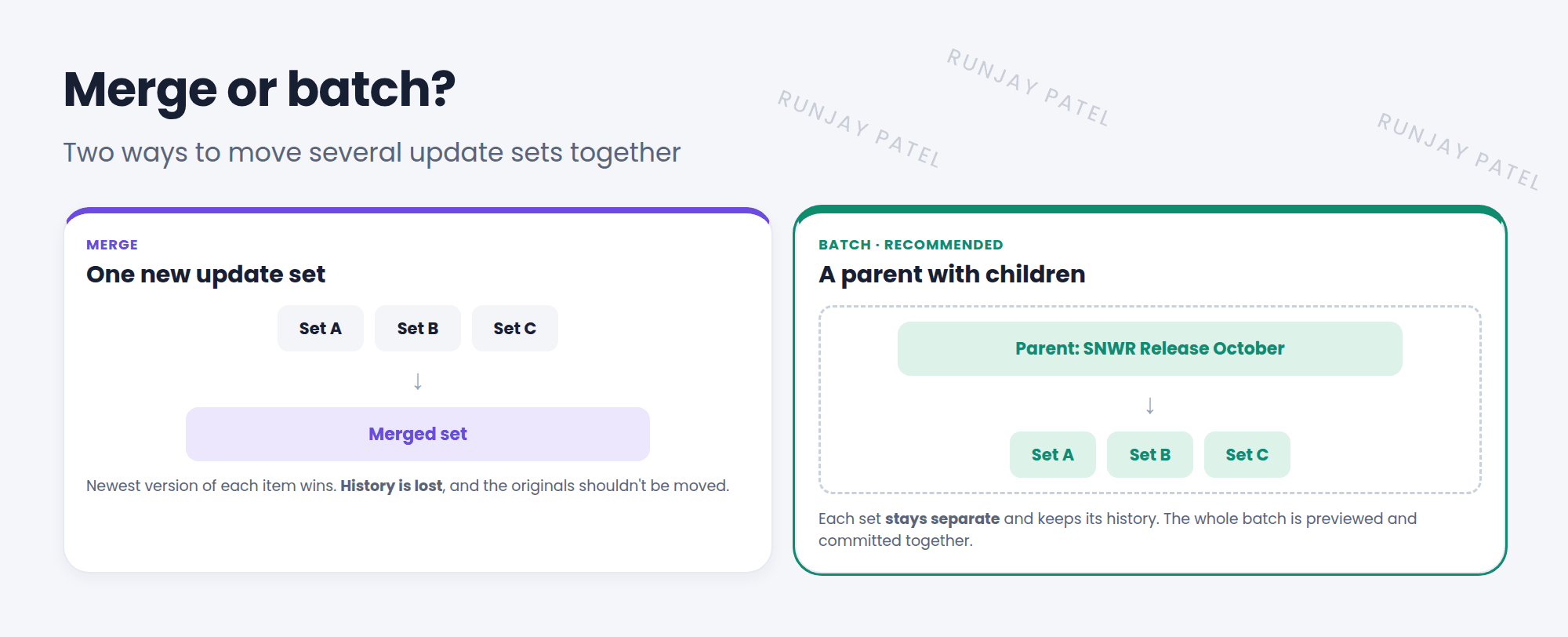
| Merge | Batch (parent update set) | |
|---|---|---|
| Result | One new update set | Original sets grouped under a parent |
| History | Lost: you can’t tell which change came from where | Kept: each set stays separate |
| Moving | Move the merged set only | Preview and commit the whole batch together |
| Where | System Update Sets > Merge Update Sets | Set the Parent field on each update set |
💡 Good to know: ServiceNow recommends batching over merging. You keep the history, and you can still move everything in one go.
⭐ Remember: Back Out = undo a commit. Merge = combine into one new set. Batch = group under a parent (preferred).
3 Let’s try it: batch two sets
- Create a parent update set named SNWR Release October.
- Open two of your completed update sets. Set their Parent field to SNWR Release October.
- Open the parent. Do you see the children in its related lists?
- Mark the parent Complete. Now the whole batch can be retrieved together.
4 Quick recap
- Back Out reverses a committed update set’s configuration
- Merge combines sets into one new set, but loses history
- Batching groups sets under a parent and keeps history
- Prefer batching over merging
5 Check yourself
Think of your answer first. Then tap to check.
1 A committed update set broke something in test. What can you do? Show answer
Back it out on that instance.
2 Two merged update sets both changed the same script. Which version is kept? Show answer
The newest one.
3 How do you make an update set part of a batch? Show answer
Set its Parent field to the parent update set.
Nice work! You finished this lesson. 🎉
Was this lesson helpful?
Please log in to share lesson feedback.
Have a question or doubt?
Ask here and get help from instructors and fellow learners.
Only logged-in learners can post.





