


Dictionary Entries
On this page
In this lesson, you will learn:
- What the System Dictionary is
- What a dictionary entry stores about a field
- How to open the dictionary entry for any field
1 The instance’s own rulebook
A normal dictionary tells you what words mean. ServiceNow’s System Dictionary tells the platform what every table and field is. 📖
Every field you’ve seen, like Short description on the Incident form, has one row in the dictionary. That row is called a dictionary entry.
Key term: System Dictionary
The table that describes every table and field in the instance. It’s stored in the sys_dictionary table.
Key term: Dictionary entry
One record in the dictionary. It holds the settings for one field (or one table).
2 What’s inside a dictionary entry
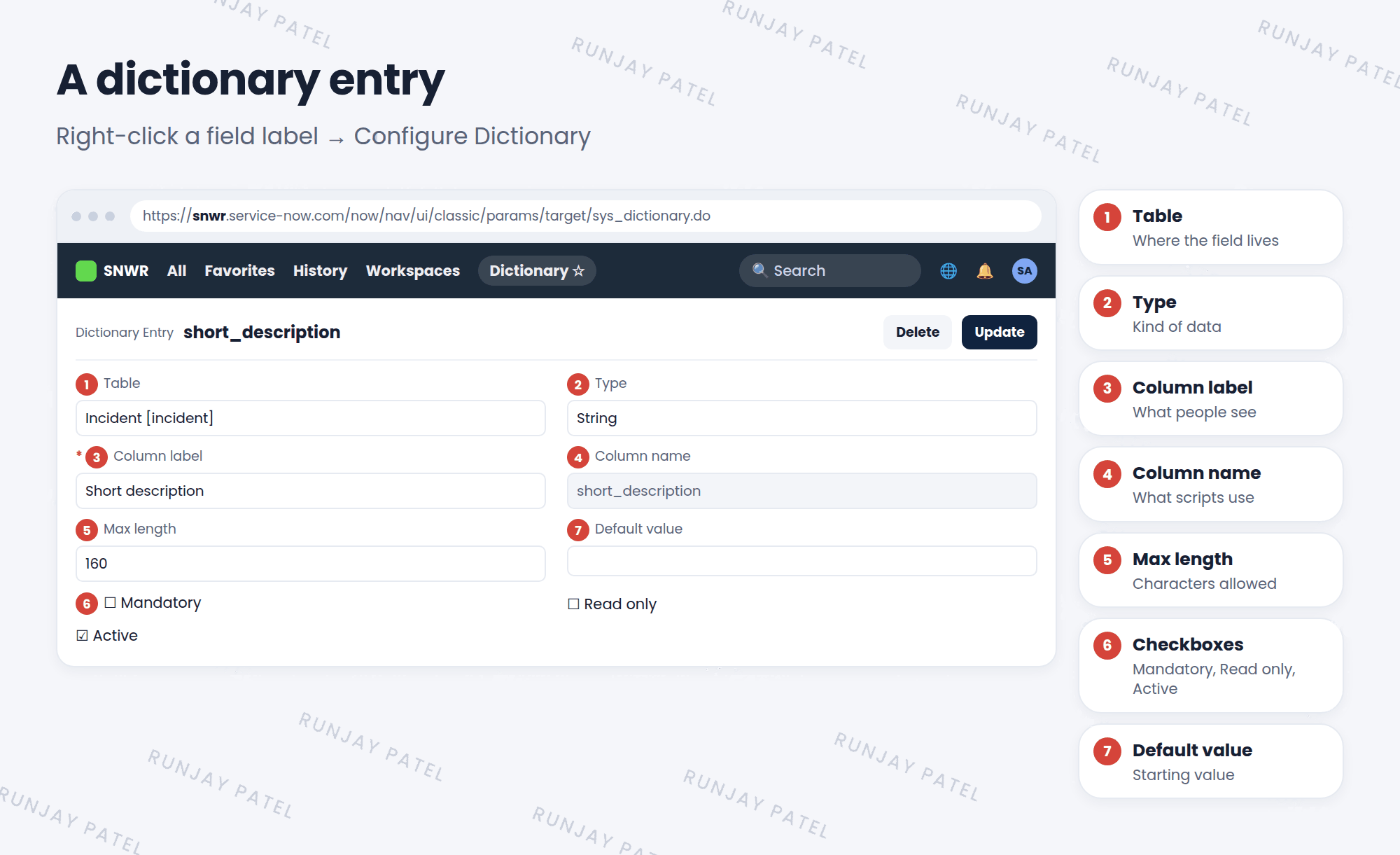
| Field | What it means |
|---|---|
| Table | Which table the field belongs to |
| Type | The kind of data, like String, Integer, Date, or Reference |
| Column label | The name people see on forms and lists |
| Column name | The system name scripts use, like short_description |
| Max length | How many characters the field can hold |
| Mandatory / Read only | Must be filled in, or can’t be changed, everywhere |
| Default value | The value a new record starts with |
| Reference | For reference fields, which table it points to |
📝 Note: Each table has a dictionary entry too. Its Type is Collection, and it has no column name. It holds settings for the whole table.
3 Two ways to open it
- From a form: right-click the field label, then choose Configure Dictionary.
- From the navigator: go to System Definition > Dictionary, then filter by table and column name.
⚠️ Heads up: A change in the dictionary applies everywhere: every form, list, import, and script. Changing Max length or Type on a field that already has data can cut off or break values. Test in a sub-production instance first, like snwrdev.
⭐ Remember: One field = one dictionary entry in sys_dictionary. Label is for people. Column name is for scripts.
4 Let’s try it: read a dictionary entry
- Open any incident. Right-click the Short description label and choose Configure Dictionary.
- Find the Type, Column name, and Max length. What’s the max length?
- Go back. Right-click the Caller label and open its dictionary entry. Which table does it reference?
- Go to System Definition > Dictionary. Filter for Table is u_room_booking (from Lesson 29.3). Can you find your custom fields?
5 Quick recap
- The System Dictionary (
sys_dictionary) describes every table and field - A dictionary entry holds one field’s settings: type, label, name, length, mandatory, default
- Tables have a Collection entry too
- Open it with right-click > Configure Dictionary
- Dictionary changes apply everywhere, so test first
6 Check yourself
Think of your answer first. Then tap to check.
1 Which table stores dictionary entries? Show answer
sys_dictionary.
2 What’s the quickest way to open a field’s dictionary entry from a form? Show answer
Right-click the field label and choose Configure Dictionary.
3 A dictionary entry has Type “Collection”. What does it describe? Show answer
A whole table, not a single field.
Nice work! You finished this lesson. 🎉
Was this lesson helpful?
Please log in to share lesson feedback.
Have a question or doubt?
Ask here and get help from instructors and fellow learners.
Only logged-in learners can post.





