


Business Rule Basics
On this page
In this lesson, you will learn:
- What a business rule is
- The key settings: When, operations, and conditions
- How to build one with no code, and with a script
1 Rules that run on the server
Client scripts and UI policies only work on forms. But records also change through imports, integrations, flows, and list edits. A business rule runs on the server, so it catches every change. ⚙️
Key term: Business rule
Server-side logic that runs when a record is inserted, updated, deleted, or queried. Find them in System Definition > Business Rules.
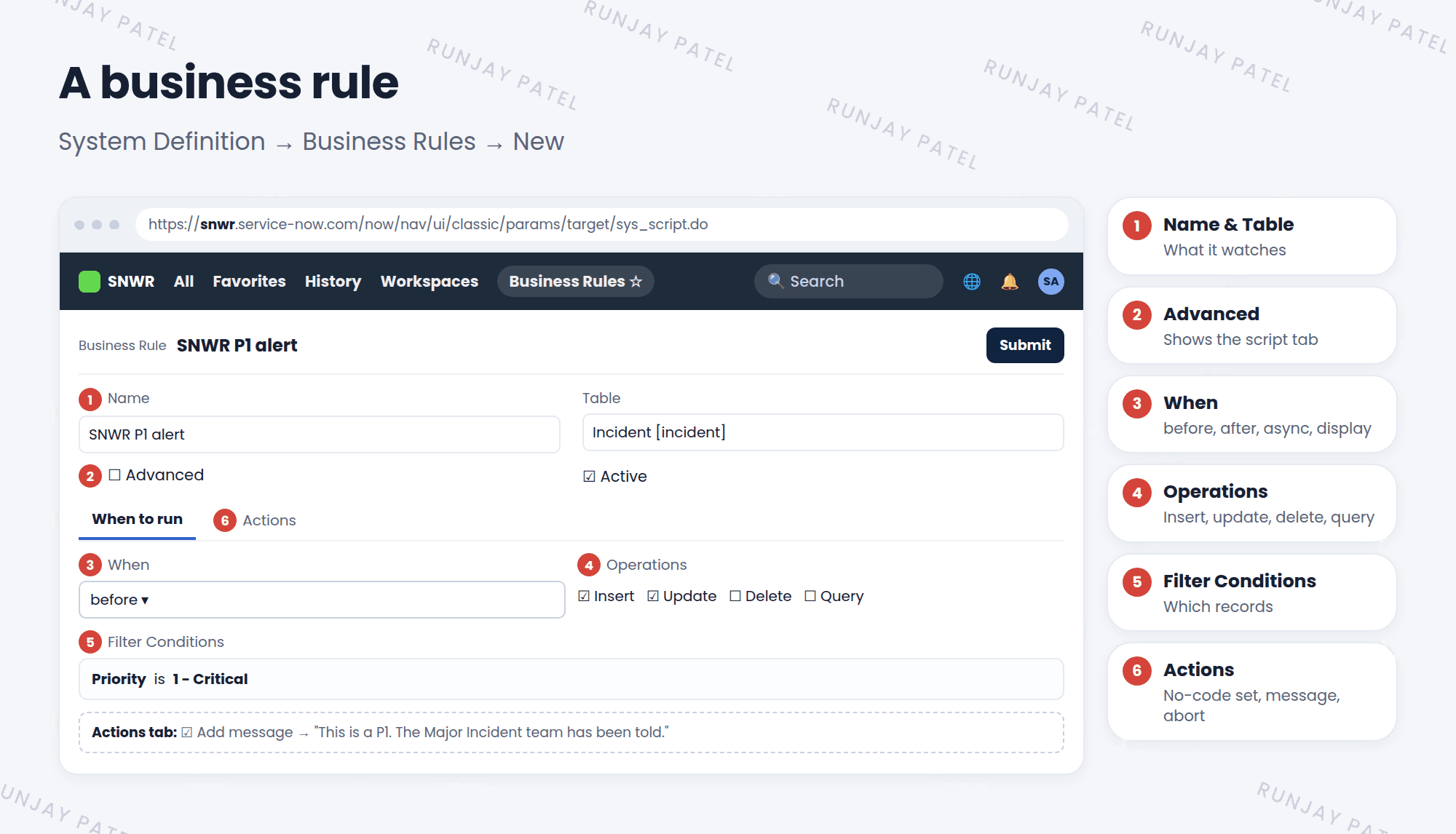
2 Key settings
| Setting | What it does |
|---|---|
| Table | Which table’s records it watches |
| When | before, after, async, or display (Lessons 39.2 and 39.3) |
| Insert / Update / Delete / Query | Which database operations start it |
| Order | Lower numbers run first |
| Filter Conditions | Only runs for records that match, like Priority is 1 |
| Role conditions | Only runs when the user has one of these roles |
| Advanced | Shows the Advanced tab for a script and a script condition |
3 No code: the Actions tab
Many business rules need no script at all. The Actions tab can:
- Set field values, like Assignment group = SNWR Service Desk
- Add message to show the user
- Abort action to stop the save
4 With code: the Advanced tab
(function executeRule(current, previous /*null when async*/) {

  if (current.impact == 1 && current.urgency == 1) {
    current.work_notes = 'P1 detected by business rule.';
  }

})(current, previous);
💡 Good to know: Try the Actions tab first. Only check Advanced when you need logic the Actions tab can’t do.
⚠️ Heads up: Business rules run for every matching change. A slow or buggy rule slows down or breaks the whole table. Always set a Filter Condition, and test in snwrdev.
⭐ Remember: Business rule = server side + Table + When + operations + conditions + actions or script.
5 Let’s try it: a P1 message
- Go to System Definition > Business Rules and click New.
- Name: SNWR P1 alert. Table: Incident.
- When: before. Check Insert and Update. Filter Conditions: Priority is 1 – Critical.
- On the Actions tab, check Add message. Message: “This is a P1. The Major Incident team has been told.” Submit.
- Create an incident with Impact 1 and Urgency 1. Save. Do you see the message?
6 Quick recap
- A business rule runs on the server for every matching change
- It runs on insert, update, delete, or query
- When: before, after, async, or display
- The Actions tab needs no code. Advanced adds a script
- Always filter, and test before production
7 Check yourself
Think of your answer first. Then tap to check.
1 Will a business rule run when an import updates a record? Show answer
Yes. It runs on the server for every matching change.
2 Name the three things the Actions tab can do. Show answer
Set field values, add a message, and abort the action.
3 Which checkbox shows the script area? Show answer
Advanced.
Nice work! You finished this lesson. 🎉
Was this lesson helpful?
Please log in to share lesson feedback.
Have a question or doubt?
Ask here and get help from instructors and fellow learners.
Only logged-in learners can post.





