


UI Policy Scripts
On this page
In this lesson, you will learn:
- When a UI policy needs a script
- How Execute if true and Execute if false work
- How to write a simple UI policy script with g_form
1 When actions aren’t enough
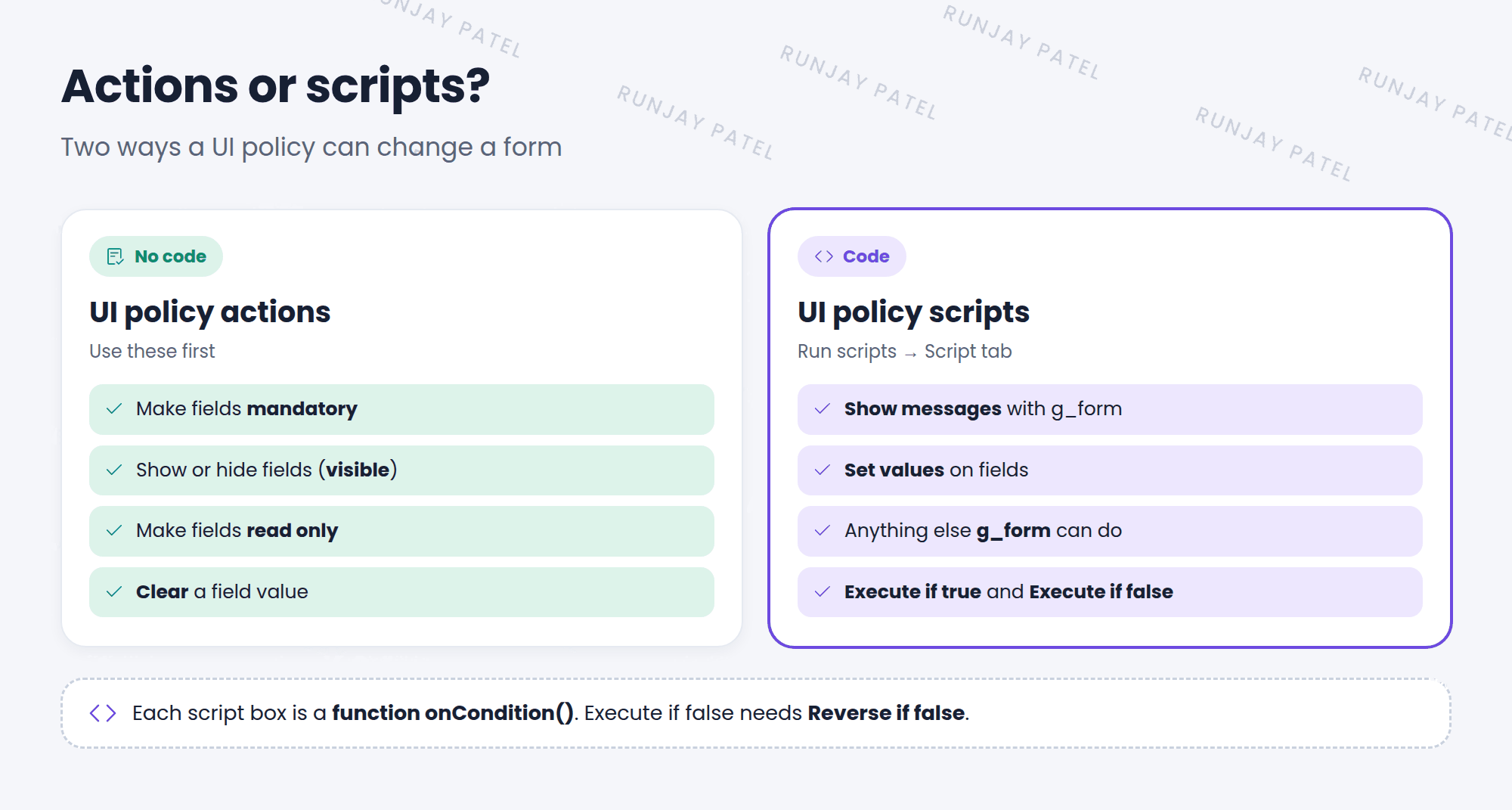
UI policy actions can make fields mandatory, visible, or read only. But what if you want to show a message, or set a value? Actions can’t do that. A little script can! 📝
Key term: UI policy script
Client-side code that runs when a UI policy’s condition is true or false. Turn it on with the Run scripts checkbox.
2 Turning scripts on
- Open the UI policy. If you don’t see Run scripts, switch to Advanced view (Related Links).
- Check Run scripts. A Script tab appears.
- Pick where it runs in Run scripts in UI type: Desktop, Mobile / Service Portal, or All.
- Fill in Execute if true, Execute if false, or both.
3 An example
When Category is Network, SNWR wants a helpful message under the Configuration item field.
Execute if true:
function onCondition() {
  g_form.showFieldMsg('cmdb_ci',
    'Pick the router or switch that is affected.', 'info');
}
Execute if false:
function onCondition() {
  g_form.hideFieldMsg('cmdb_ci');
}
📝 Note: g_form is the client-side helper for forms. You’ll learn many more g_form methods in Chapter 36.
💡 Good to know: Execute if false only runs when Reverse if false is checked.
⚠️ Heads up: Don’t use a script for things actions can already do, like making a field mandatory. Actions are easier to read and maintain.
⭐ Remember: Run scripts → Execute if true / Execute if false → each is an onCondition() function.
4 Let’s try it: add a hint
- Open your Network needs a CI UI policy. Switch to Advanced view.
- Check Run scripts. Paste the two scripts above into Execute if true and Execute if false. Update.
- Open a new incident and set Category to Network. Do you see the message under Configuration item?
- Change Category to Software. Did the message go away?
5 Quick recap
- Use scripts only when actions can’t do the job
- Check Run scripts to see the Script tab
- Execute if true runs when the condition matches
- Execute if false runs when it doesn’t (needs Reverse if false)
- Scripts use
g_formto change the form
6 Check yourself
Think of your answer first. Then tap to check.
1 Which checkbox shows the Script tab on a UI policy? Show answer
Run scripts.
2 What’s the function name in both script boxes? Show answer
onCondition().
3 You only need to make a field read only. Script or action? Show answer
An action. Keep scripts for things actions can’t do.
Nice work! You finished this lesson. 🎉
Was this lesson helpful?
Please log in to share lesson feedback.
Have a question or doubt?
Ask here and get help from instructors and fellow learners.
Only logged-in learners can post.





